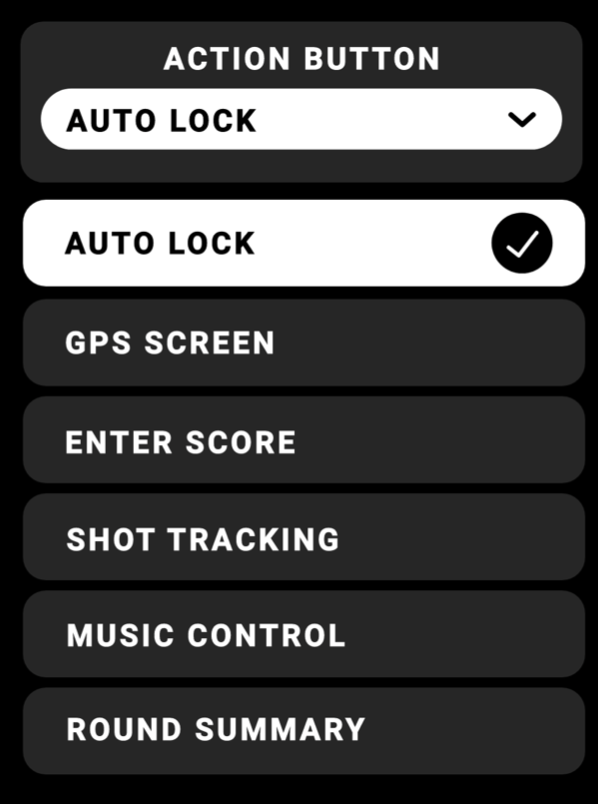

The Action Button creates a completely customizable, multi-functional experience in Ringer. Press and hold the button for 3s to Power ON/OFF the device. Customize a single-press shortcut for golf mode in your settings.
1. AUTO LOCK – Lock/Unlock the touchscreen display • Ideal for pocket users
Default option
2. GPS SCREEN – Switches display to the Main GPS Distance Screen
Quick navigation to your main display
3. ENTER SCORE – Switches display to the Scoring Screen (if turned ON in device settings)
After each hole, easily enter your score with afew taps
4. SHOT TRACKING – Press to activate shot tracking from current location, press again to log shot and start tracking next shot
Track each shot distance by the press of a button
5. MUSIC CONTROL – Play/Pause/Skip/Last/Volume controls for Player+ (sold separately)
Requires Ringer & Player+ devices to be connected to the Blue Tees Game mobile app
6. ROUND SUMMARY – Review your current scorecard and statistics, or quickly end round.
Evaluate your in-round progress of fairways/greens in regulation, putts, and total score